Devices and configs

Add, set up and remove devices on the My IPs tab.

Open dashboard

Add a device

Add another computer, phone or router to your static IP at no extra cost. Each device requires its own config.

Device limits per IP: Plus (2), Pro (5), Ultra and Unlimited (10).

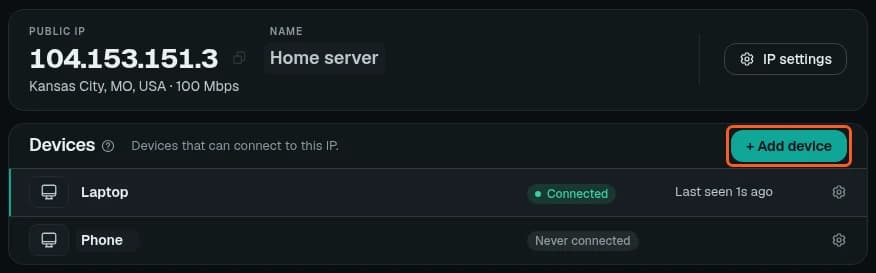
  1. Click + Add device.

    My IPs tab, Devices box: the + Add device button
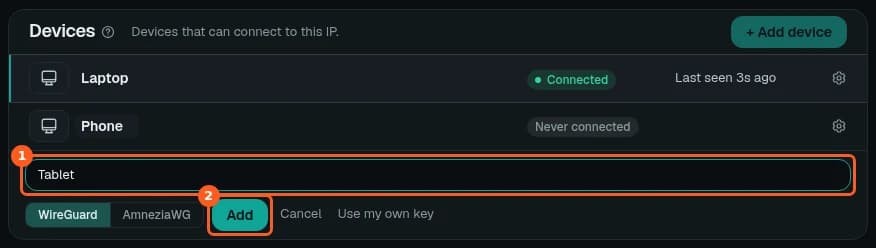
  2. Type a name and click Add.

    Add device form: the name field with Tablet typed, and the Add button

Name a device

  1. Click the name, type a new one, press Enter.

    Devices list: the second device's name, being changed to Work phone

Get the config

  1. Click the gear, then Download. On a phone, click Show QR.
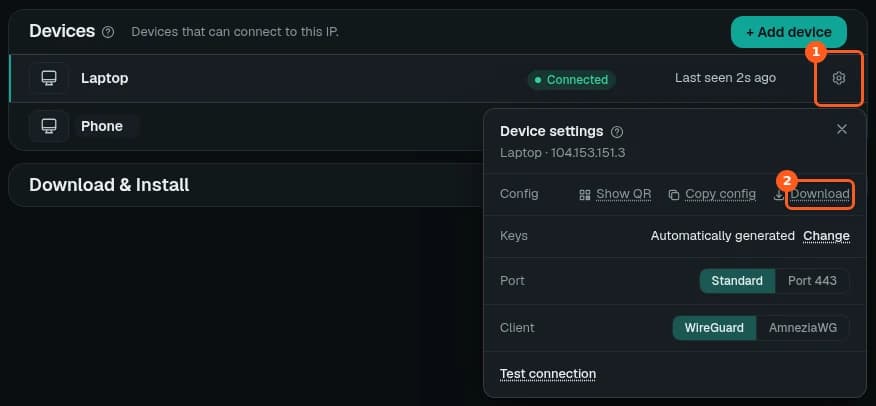
    Device settings: the gear on the device's row, and Download in the Config row

Switch to AmneziaWG

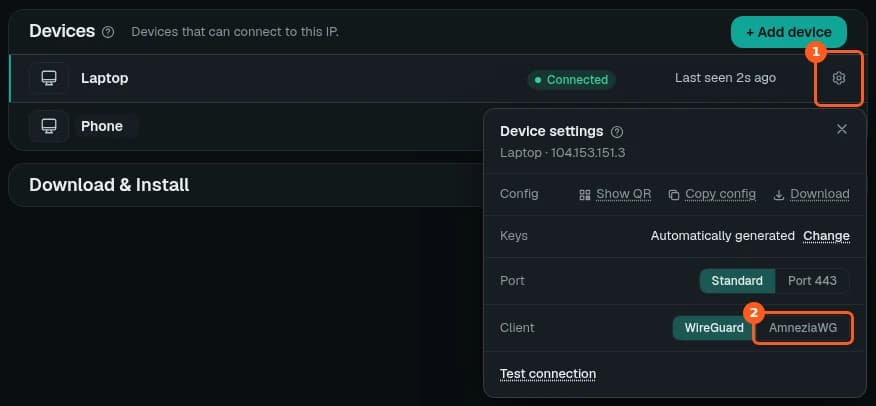
  1. Click the gear, then AmneziaWG.

    Device settings: the gear on the device's row, and AmneziaWG in the Client row
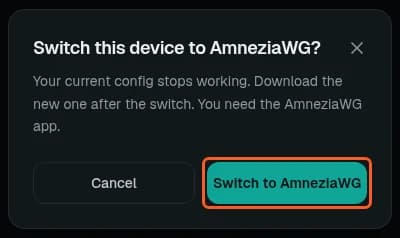
  2. Click Switch to AmneziaWG.

    Switch this device to AmneziaWG? dialog: the Switch to AmneziaWG button
  3. Click Download AmneziaWG Config and import it into the AmneziaWG app.
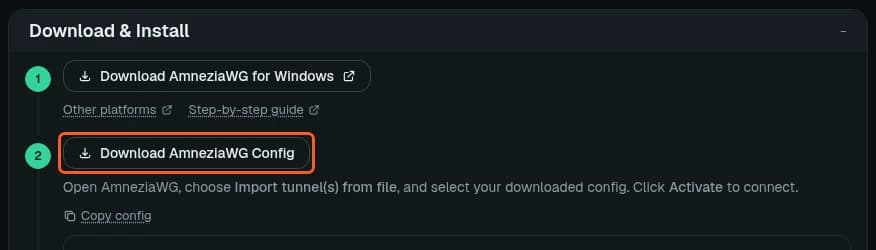
    Download & Install after the switch: Download AmneziaWG for Windows and Download AmneziaWG Config

Use Port 443

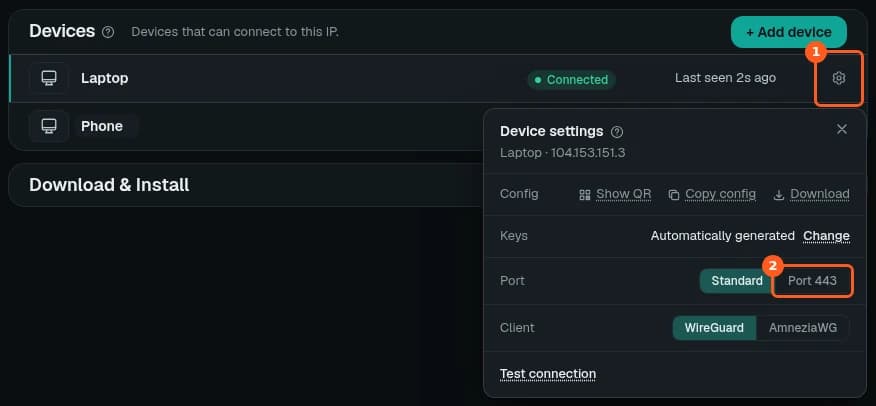
  1. Click the gear, then Port 443.

    Device settings: the gear on the device's row, and Port 443 in the Port row
  2. Click Download Config (UDP 443) and import it into WireGuard.
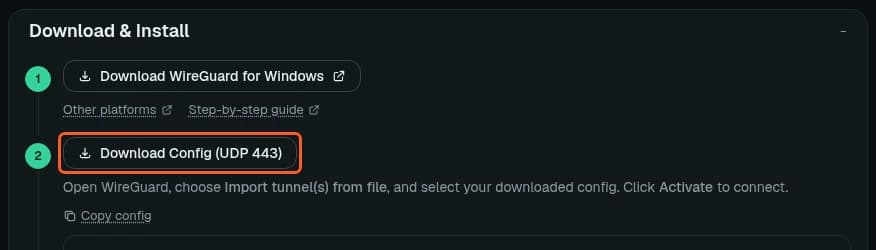
    Download & Install with Port 443 chosen: the Download Config (UDP 443) button

Change keys

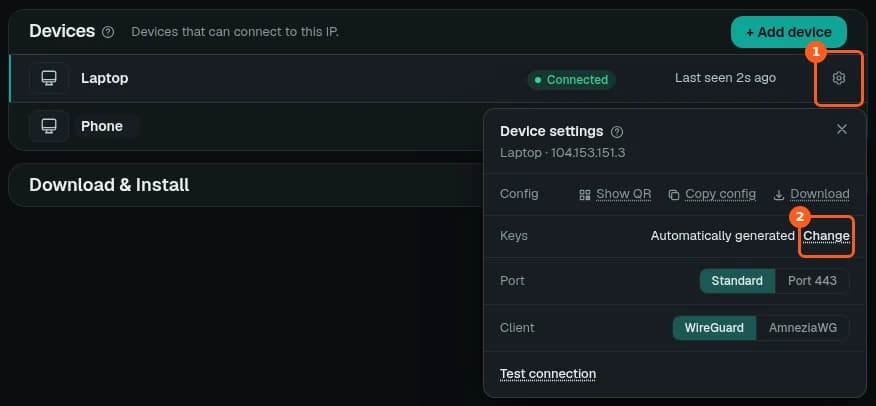
  1. Click the gear, then Change.

    Device settings: the gear on the device's row, and Change in the Keys row
  2. For new keys: select Generate new keys, click Generate new keys, then download the new config.
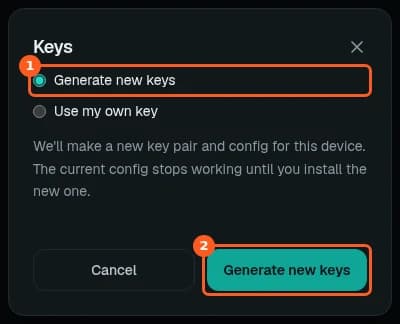
    Keys dialog: Generate new keys selected, and the Generate new keys button
  3. For your own key: select Use my own key, paste your public key, click Use this key.
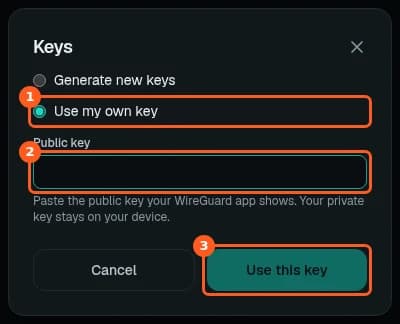
    Keys dialog: Use my own key selected, the Public key field, and the Use this key button

Test the connection

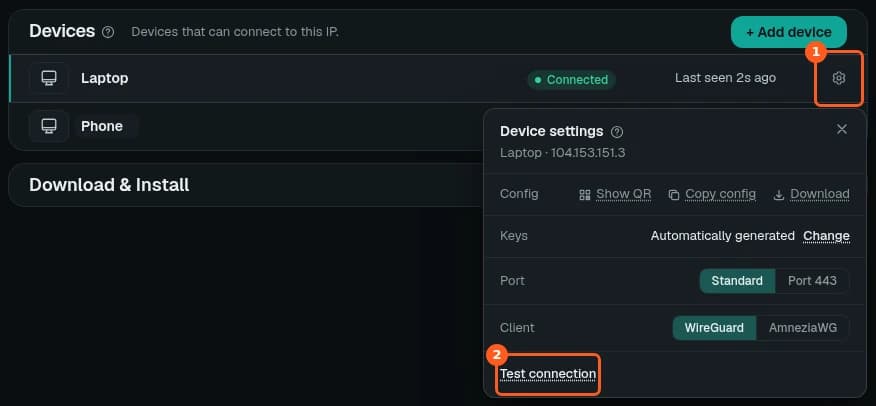
  1. Click the gear, then Test connection.

    Device settings: the gear on the device's row, and Test connection
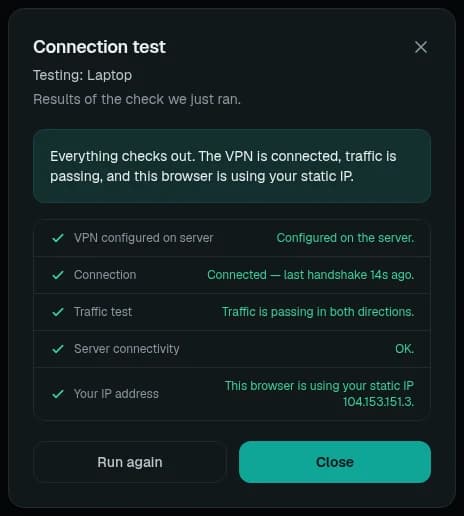
  2. Read the result.

    Connection test result: Everything checks out, with five passed checks

Remove a device

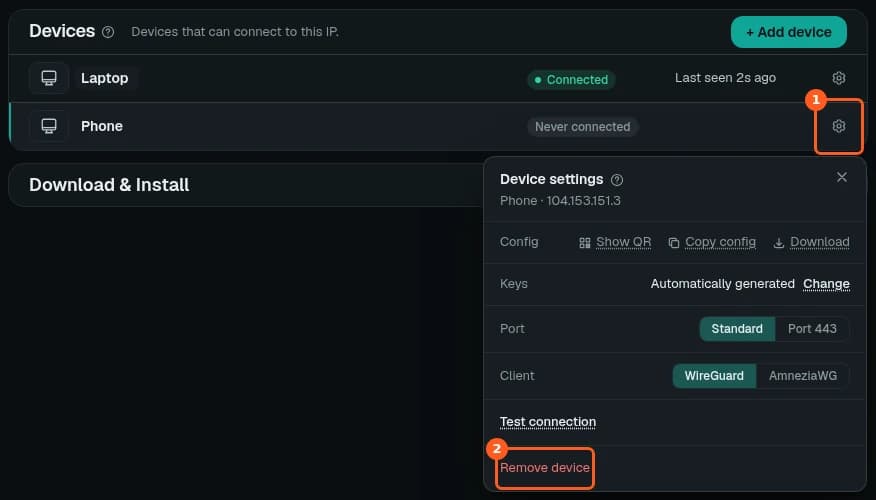
  1. Click the gear, then Remove device.

    Device settings of the second device: the gear on its row, and Remove device
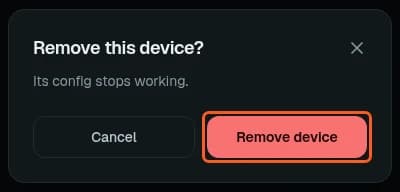
  2. Click Remove device.

    Remove this device? dialog: the Remove device button