Set up GetAStatic in Clash Verge Rev
Clash Verge Rev can run your WireGuard tunnel and use rules to choose which traffic leaves from your static IP. Download the profile from your dashboard, import it, and check your IP.
Outgoing traffic only. Open ports do not reach a computer that connects with Clash. For port forwarding, use the WireGuard app on that computer instead.
Add the profile
Install Clash Verge Rev
Get Clash Verge Rev from its GitHub releases page. It takes the place of the WireGuard app, so skip step 1 Download WireGuard on your dashboard.
Download the Clash profile
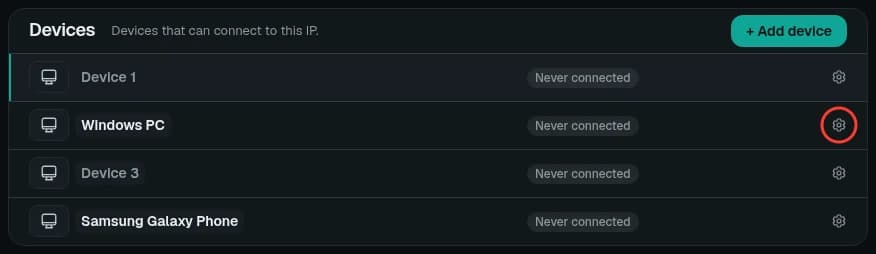
Open your dashboard with this link: it turns on the Clash row, which is hidden otherwise. On the My IPs tab, choose your IP. In the Devices list, click the gear icon on this computer's row, or click + Add device to add it.
In the Clash row, click Download YAML.
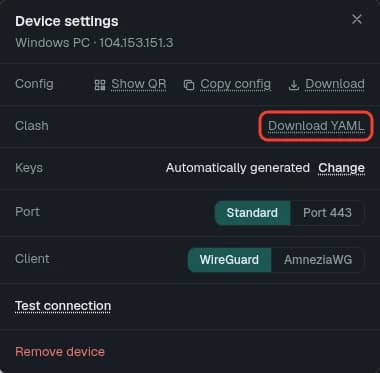
The row shows when the device uses WireGuard with a generated key. The file holds your private key, so do not share it.
Import it
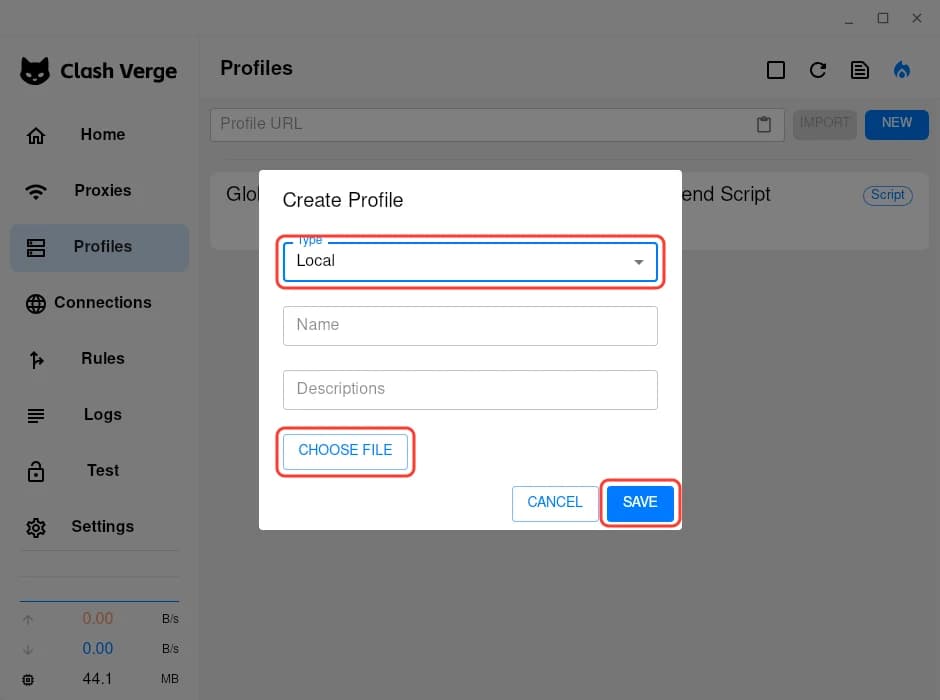
In Clash Verge Rev, open Profiles and click New. Set Type to Local, enter a name, click Choose File, pick the downloaded file, and click Save.
Select it
Click the new profile card. A coloured edge shows that it is selected. Then click the flame icon at the top right, Reactivate Profiles, so the app loads it.
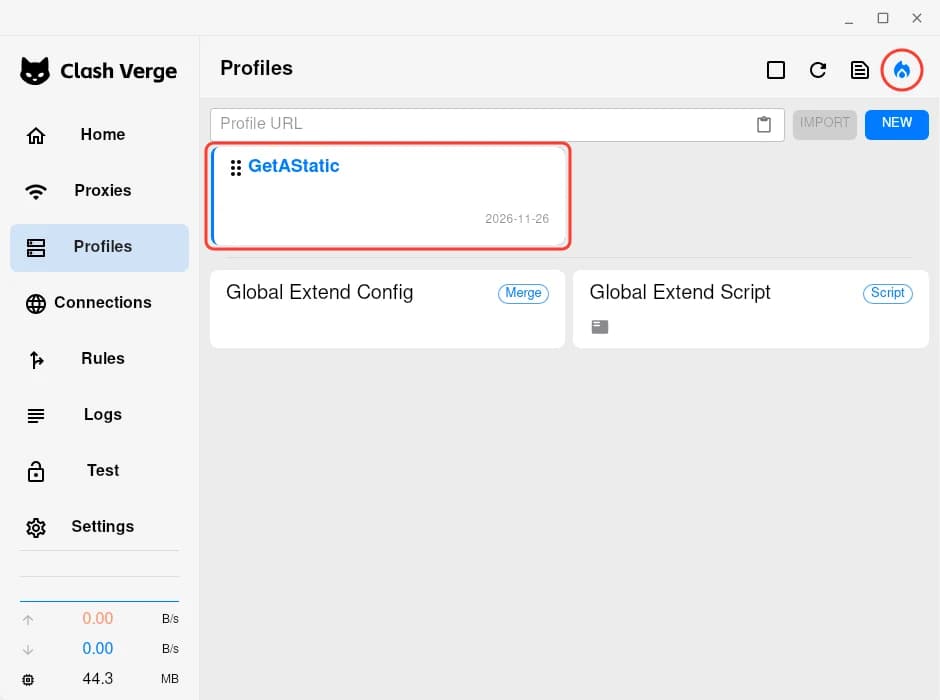
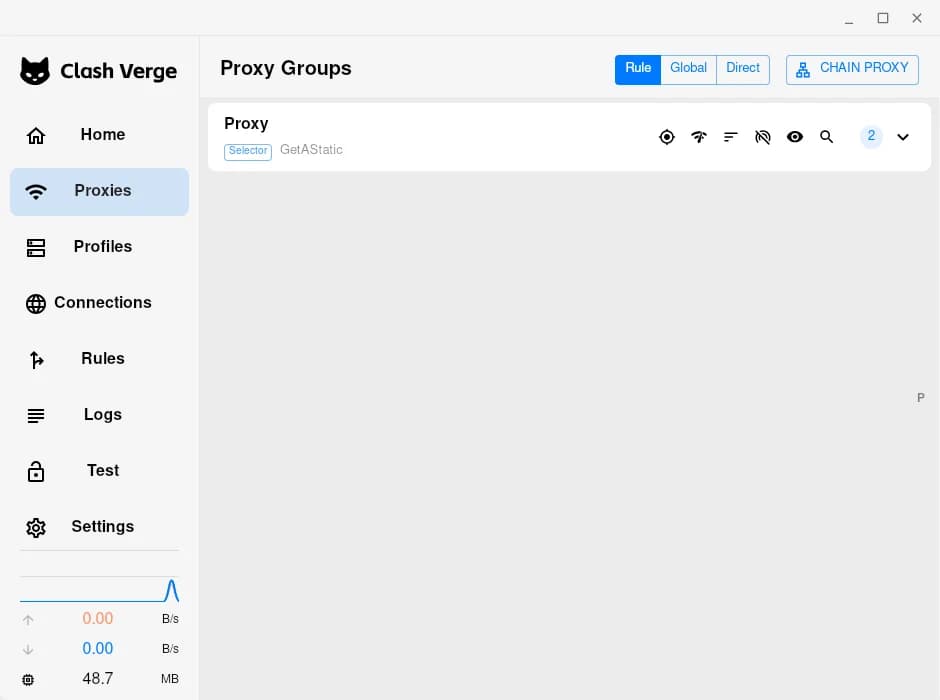
The Proxies page now shows a group named Proxy with your static IP's tunnel selected.
Connect and check
Turn it on
On the Home page, turn on Tun Mode to cover every app. On Windows it needs Service Mode, which Clash Verge Rev offers to install, or the app run as administrator. System Proxy is simpler, but it covers only apps that follow the system proxy, mostly browsers.
If the WireGuard app runs the same device's config, turn that tunnel off first. With both on, both keep disconnecting.
Check your IP
In a browser, open:
https://getastatic.com/api/tools/ip
The
ipvalue must be the IP on your dashboard.
Choose what uses the IP
The profile sends everything through your static IP except your local network. Clash reads rules from top to bottom and uses the first match. To keep a site on your normal connection, add a DIRECT rule above the last line:
rules:
  - DOMAIN-SUFFIX,example.com,DIRECT
  - IP-CIDR,192.168.0.0/16,DIRECT,no-resolve
  - MATCH,Proxy
Traffic that goes direct does not count toward your plan's data. If you download the profile again, add your rules again.
If it does not work
- The check shows your normal IP: on the Profiles page, click the flame icon, Reactivate Profiles. The Proxies page must show the Proxy group.
- Nothing loads through the IP: your network may block UDP 1194. On the dashboard, click the gear icon on the device's row, choose Port 443, then click Download YAML again and import the new file.
- Still blocked: switch the device to AmneziaWG on the dashboard. AmneziaWG runs in its own app, not in Clash, and it sends all traffic through the tunnel.
- An open port does not answer: that is expected with Clash. Use the WireGuard app on the computer that hosts the service.
- It connects and disconnects again and again: another device or app runs the same config. Give each device its own with + Add device.
Still stuck? Ask on the Support tab of your dashboard. Never send your profile: it holds your private key.